What Is the Provider Agent
token-provider-agent is a long-running command-line program that connects your machine to the platform, keeps it online, receives tasks, and invokes your local model to perform inference.
The web console handles creating API Keys, viewing nodes, activity records, and revenue. But the thing that actually turns your machine into a Provider node is this Agent.
Prerequisites
Before you begin, confirm the following are ready:
- A machine that can run for extended periods
- An installed and accessible local inference framework; LM Studio is used by default, and vLLM / SGLang / oMLX / llama.cpp / Ollama are also supported
- In the default LM Studio mode, confirm the local service is running and exposes the OpenAI-compatible
/v1/modelsand/v1/chat/completions - A Provider API Key (the next section explains how to obtain one)
- The
token-provider-agentbinary provided by the platform
Device Recommendations
When choosing a model, look first at the GPU's available VRAM. Below are common single-GPU configuration recommendations; different inference frameworks, quantization precision, context length, and system usage all affect the actual loadable scale. Before officially starting up, still rely on the load result of your local inference framework and the Agent preflight as the source of truth.
| GPU Available VRAM | Common GPU Examples | Recommended Model |
|---|---|---|
| <= 12 GB | Entry-level or older consumer GPUs | Not recommended |
| >=16 GB | GeForce RTX 4060 Ti 16GB, RTX 5060 Ti 16GB, RTX 4070 Ti SUPER, RTX 4080, RTX 4080 SUPER, RTX 5070 Ti, RTX 5080 | qwen3.5:9b |
| >=24 GB | GeForce RTX 3090, RTX 4090, RTX 4090 D, RTX 5090 D v2 | gemma4:26b |
| >=32 GB | GeForce RTX 5090, RTX 5090 D (the non-v2 32GB version) | qwen3.6:35b |
Software Downloads
Go to Downloads to download the Tokener CA Token related programs.
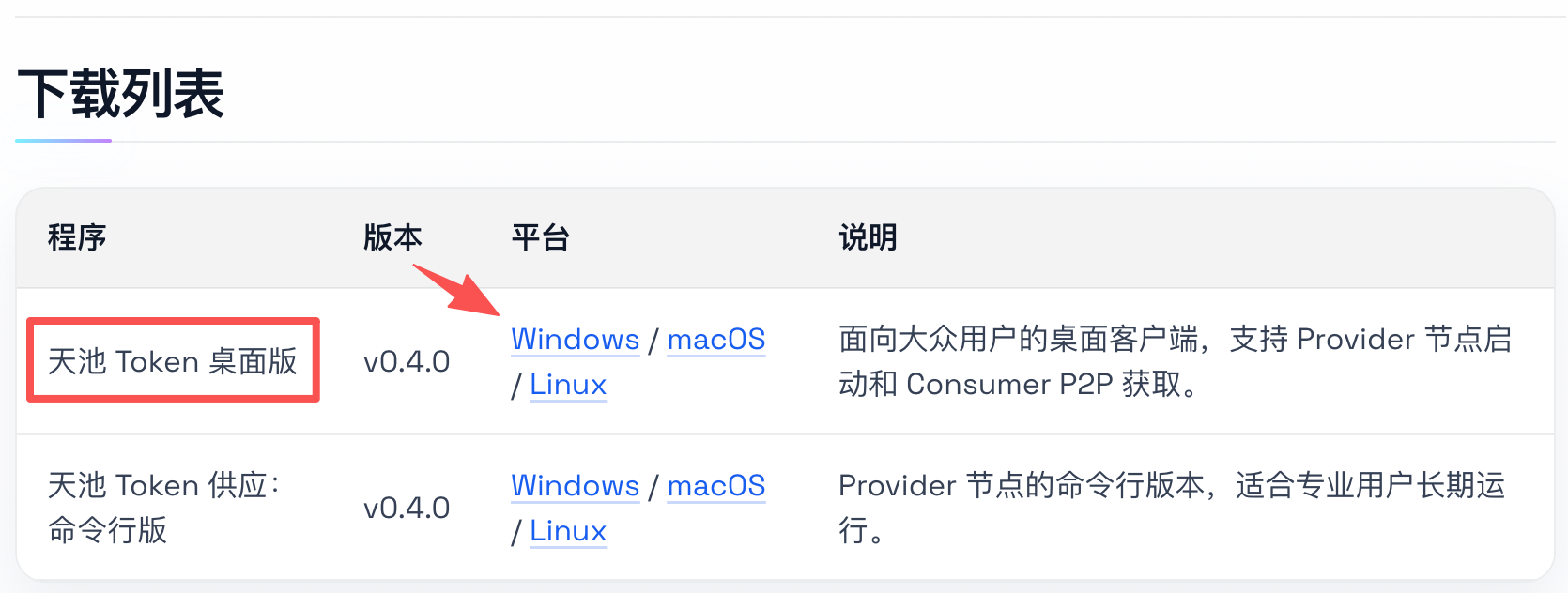
Regular Provider users should download the "Tokener CA Token Desktop" version first. The desktop version offers a graphical entry point, supports starting a Provider node, and is better suited for everyday use on local desktops and workstations.
Only when you need long-running daemons, scripted deployment, server deployment, or running in a headless environment should you download "Tokener CA Token Supply: Command-Line Version." If you choose the command-line version, the following examples uniformly use ./token-provider-agent in place of the actual executable file.
The local inference framework can also be installed from the "Third-Party Programs" list on the downloads page, which links to the installation pages. LM Studio is recommended first by default; professional nodes can then choose vLLM / SGLang / oMLX / llama.cpp / Ollama based on their machine and throughput needs.
Step 1: Obtain a Provider API Key
Log in to the web console, go to the Provider "API Keys" page, and create a new Provider API Key.
After creation, the page will directly display the key content (stp-...). Save it immediately; once you leave the page you cannot view it again.
We recommend using a separate key for each machine, which makes it easier to later trace node status, activity records, and revenue attribution.
Step 2: Confirm the Inference Framework and Model Are Available
When the Provider Agent starts, it checks whether the specified model is available in the inference framework. The default inference framework is LM Studio; before starting, confirm three things:
- LM Studio has been installed from the LM Studio download page
- The target model has been downloaded and loaded in LM Studio
- The local API Server on the Developer page has been started; the default address is
http://127.0.0.1:1234
The --model parameter still uses the platform-side model code, for example qwen3.5:9b. The console's Token supply example shows both the "model name" and the "model ID": the model name is usually used to search, download, or start the local inference framework; the model ID is the identifier returned by the local OpenAI-compatible /v1/models, used by the Provider Agent preflight and by actual requests.
For LM Studio installation, downloading models, and verification methods, see LM Studio Local Model Preparation.
If you use an OpenAI-compatible inference framework such as vLLM / SGLang / oMLX / llama.cpp, likewise confirm that the service exposes /v1/models and /v1/chat/completions, and have the corresponding inference framework address and inference framework API Key ready. During the startup preflight, the Agent selects a default model ID from the runtime_model_options of the platform's /platform/v1/models based on --api-format; if you selected a different model ID in the console, pass it explicitly via --runtime-model-id or PROVIDER_AGENT_RUNTIME_MODEL_ID.
If you already have an Ollama environment, you can also continue using --api-format ollama. In Ollama mode, you must first download the target model with ollama pull <model_name> and confirm it is visible locally via ollama ls.
For the installation, model name preparation, 256K context configuration, and availability check methods of different inference frameworks, see:
- LM Studio Local Model Preparation
- vLLM Local Model Preparation
- SGLang Local Model Preparation
- oMLX Local Model Preparation
- llama.cpp Local Model Preparation
- Ollama Local Model Preparation
Step 3: Run the Pre-Startup Check
Before officially starting, run a preflight first:
./token-provider-agent preflight start --model qwen3.5:9bThe preflight only performs checks and will not start the service. Currently it confirms:
- Whether the inference framework is accessible
- Whether the specified model exists in the inference framework
Common causes when the preflight fails:
- The inference framework is not started, or the address is incorrect
- The model ID is misspelled, or the ID returned by the local
/v1/modelsdoes not match what the console displays - The Ollama model has not been pulled locally, or the OpenAI-compatible service does not expose the upstream model resolved by the preflight
- The platform model catalog does not provide
runtime_model_optionsfor the current--modeland--api-format
For non-Ollama inference frameworks, you can explicitly pass the inference framework address and framework type during preflight:
./token-provider-agent preflight start --model gemma4:26b --base-url http://127.0.0.1:8000 --api-format omlx --runtime-model-id gemma-4-26b-a4b-it-4bitIf the upstream service requires authentication, you must pass --runtime-api-key during both preflight and startup, or set PROVIDER_AGENT_RUNTIME_API_KEY.
Step 4: Start the Provider Agent
The core startup command:
./token-provider-agent start --api-key stp-... --model qwen3.5:9bMain parameters:
| Parameter | Description |
|---|---|
--api-key | The Provider API Key created in the web console |
--model | The platform-side model code; in Ollama mode it usually equals the local model name directly |
After a successful start, the process runs continuously, continuously performing the following work:
- Registering or restoring the node
- Reporting model and node status
- Sending heartbeats to stay online
- Receiving and executing inference tasks
So it is a long-running service, not a one-time command.
Additional Startup Parameters
If you need to customize the connection address or tune parameters, you can also use:
| Parameter | Description | Default |
|---|---|---|
--node-name | This machine's display name on the platform | Current hostname |
--base-url | Local inference framework address; ollama uses the native /api, other frameworks use the OpenAI-compatible /v1 | http://127.0.0.1:1234 |
--api-format | Inference framework selection, one of lmstudio / vllm / sglang / omlx / llama.cpp / ollama, case-insensitive | lmstudio |
--runtime-model-id | Optional: the model ID actually used by the local inference framework; when omitted, the platform catalog default is selected | Not set |
--runtime-api-key | The API Key for non-Ollama inference frameworks, passed as Authorization: Bearer to /v1/... | Not set |
--provider-base-url | Control plane address | https://provider.skypool.xyz |
--relay-ws-url | Relay WebSocket address | wss://a.skypool.xyz |
--state-path | Local state file path, used to save node session state | /tmp/provider-agent-state.json |
--log-level | Log level | info |
--p2p-enabled | Enable P2P direct connection; can also explicitly pass true / false | false |
--max-p2p-connections | Maximum number of P2P connections | 8 |
--max-total-concurrency | Maximum number of concurrent tasks | 1 |
--prefill-progress-interval-ms | Prefill progress refresh interval before the first real output (milliseconds) | 15000 |
--ollama-base-url is still supported but deprecated; new configurations should uniformly use --base-url.
These startup parameters can also be passed via environment variables:
| CLI Parameter | Environment Variable |
|---|---|
--api-key | PROVIDER_AGENT_API_KEY |
--model | PROVIDER_AGENT_MODEL_CODE |
--node-name | PROVIDER_AGENT_NODE_NAME |
--base-url | PROVIDER_AGENT_BASE_URL |
--api-format | PROVIDER_AGENT_API_FORMAT |
--runtime-model-id | PROVIDER_AGENT_RUNTIME_MODEL_ID |
--runtime-api-key | PROVIDER_AGENT_RUNTIME_API_KEY |
--provider-base-url | PROVIDER_AGENT_PROVIDER_BASE_URL |
--relay-ws-url | PROVIDER_AGENT_RELAY_WS_URL |
--state-path | PROVIDER_AGENT_STATE_PATH |
--log-level | PROVIDER_AGENT_LOG_LEVEL |
--p2p-enabled | PROVIDER_AGENT_P2P_ENABLED |
--max-p2p-connections | PROVIDER_AGENT_MAX_P2P_CONNECTIONS |
--max-total-concurrency | PROVIDER_AGENT_MAX_TOTAL_CONCURRENCY |
--prefill-progress-interval-ms | PROVIDER_PREFILL_PROGRESS_INTERVAL_MS |
Boolean parameters support 1, true, yes, on to enable, and 0, false, no, off to disable. The full command list can be viewed via --help.
OpenAI-compatible Inference Framework Example
When your upstream service is compatible with the OpenAI Chat Completions API, just select the corresponding --api-format and start. The following uses the default recommended LM Studio as an example:
./token-provider-agent start --api-key stp-... --model gemma4:26b --base-url http://127.0.0.1:1234 --api-format lmstudio --runtime-model-id google/gemma-4-26b-a4b --runtime-api-key runtime-...If the upstream service does not require authentication, you can omit --runtime-api-key. If you have not selected a different model ID, you can also omit --runtime-model-id; the Agent will resolve the platform model catalog default during the preflight stage and use the local /v1/models to verify it can be invoked.
Step 5: Confirm the Node Is Working Properly
You can confirm this from three angles.
Agent Process Status
If the process does not exit immediately after running start, the basic startup has passed.
Web Console Node List
Go to the Provider "Node List" page and confirm you can see:
- Your node name
- Node status
- Most recent heartbeat time
If the heartbeat time keeps refreshing, the Agent is running online normally.
Activity Records and Revenue
Once requests start coming in, you can see the actual request processing on the "Activity Records" and "Revenue" pages. If requests have appeared in the activity records and the Agent is running stably, the main flow is connected.
Common Commands
View Help
./token-provider-agent --helpView Node Status
./token-provider-agent status --jsonConfirms the current node status and lifecycle snapshot.
View Local Models
./token-provider-agent models --jsonConfirms which local models the Agent can currently see.
Export Diagnostic Information
./token-provider-agent diagnose --jsonMost useful when troubleshooting inference framework, connection, or local state problems.
View P2P Status
./token-provider-agent p2p status --jsonUse this when troubleshooting direct connection or transport capabilities.
Stop
./token-provider-agent stopIf the Agent is running in the foreground, you can also stop it directly with Ctrl+C.
FAQ
Startup Reports Missing model code
The startup command is missing the --model parameter; add it and re-run:
./token-provider-agent start --api-key stp-... --model qwen3.5:9bPreflight Fails, Model Not Found
The specified model is not available in the inference framework. Check in order:
- The inference framework is started
- The model ID is spelled correctly and can be seen in the local
/v1/models - The Ollama model has been pulled locally, or the OpenAI-compatible
/v1/modelscan return the upstream model resolved by the preflight - The
runtime_model_optionsof the current platform model in the platform's/platform/v1/modelsincludes the selected--api-formatand model ID
You can use ./token-provider-agent models --json to view the list of models the Agent can currently recognize.
Node Does Not Appear in the Web Console
Check in order:
- Whether the Agent process exited directly
- Whether the API Key is correct
- Whether the node name was passed in successfully
- Whether there are obvious errors in the
statusanddiagnoseoutput
If the Agent starts successfully but the node list is empty, usually some step in the connection chain is not completed.
The Agent Is Running, but There Are No Requests
Don't immediately suspect a problem with model execution; check the following first:
- Whether the node is online
- Whether the heartbeat keeps updating
- Whether the model has been reported successfully
- Whether any traffic is currently allocated to your node
The web console's "Node List," "Activity Records," and "Revenue" are the three most direct observation entry points.
What to Do If the API Key Is Leaked
- Delete the old Provider API Key in the web console
- Create a new key
- Restart the Agent with the new key
Do not continue using a key you suspect has been leaked.
Minimal Getting-Started Flow
Follow the steps below in order to complete the most basic connection:
- Create a Provider API Key in the web console
- Have the
token-provider-agentbinary ready - Confirm the local inference framework and target model are available
- Run
./token-provider-agent preflight start --model qwen3.5:9b - Run
./token-provider-agent start --api-key stp-... --model qwen3.5:9b - View the "Node List" in the web console
- View the "Activity Records" and "Revenue"