When you need this page
The Provider Agent calls the local Ollama to run inference. Before starting the Provider Agent, you need to install Ollama and download the models you want to provide to the local machine.
Installing Ollama
Open the Ollama download page and choose an installation method for your system.
macOS users can download the graphical installer. The Ollama download page also provides a terminal install command:
curl -fsSL https://ollama.com/install.sh | shLinux users usually use the same terminal install command. Windows users should select the Windows installer on the download page and follow the installation wizard.
After installing, confirm the command is available:
ollama --versionIf it reports that the ollama command cannot be found, first reopen the terminal; if it is still unavailable, check whether Ollama installed successfully and whether the command has been added to the system PATH.
Starting Ollama
On macOS and Windows, after installing the desktop app, the Ollama background service usually starts automatically. You can also start it manually:
ollama serveIf it reports that the port is already in use, this usually means Ollama is already running in the background and there is no need to start it again.
Downloading models
Choose a model in the Ollama model library and note the model name. The download command is:
ollama pull <model_name>For example:
ollama pull qwen3.5:9bHere <model_name> must match the Provider Agent's --model. For example, if you downloaded qwen3.5:9b, you should also use it when starting the Provider Agent:
./token-provider-agent start --api-key stp-... --model qwen3.5:9bSetting the context window
The Ollama desktop app lets you set a global Context length in Settings. Open the Ollama settings page, find the Context length slider, and set it according to the context window required by the target model; the 128k in the screenshot is only an example, and the actual value should follow the requirements of the model you are providing.
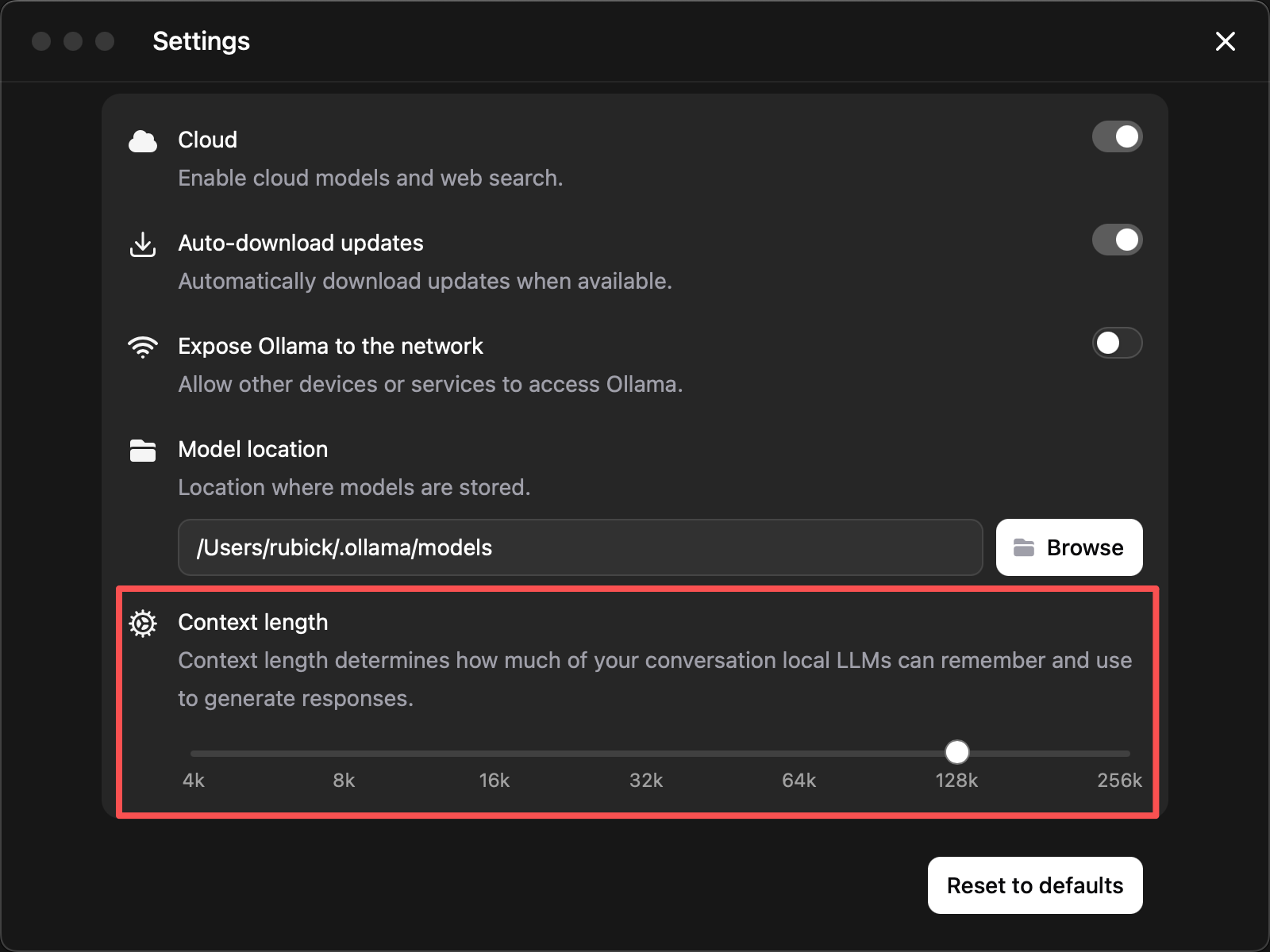
Common conversions are: 128K corresponds to 131072 tokens, and 256K corresponds to 262144 tokens. If the target model only requires 128K, do not set it to 256K just for uniformity; only set the corresponding window if the target model explicitly supports 256K. The larger the context window, the higher the KV cache usage, and when the machine's RAM or VRAM is insufficient it may cause load failures, slower inference, or runtime interruptions.
Notes:
Context lengthis the context window the model can use at runtime- The
max_tokensin an OpenAI request body is only the maximum number of tokens generated for that single request, not the context window - The model itself must support the target context window you set; you cannot exceed the model's limit through the Ollama setting alone
- When multiple models share the same global Ollama setting, follow the requirements of the model currently handling the Provider node's tasks
Verifying the model
View the local model list:
ollama lsConfirm the output includes the model name you plan to use.
Then do a simple inference:
ollama run qwen3.5:9b "Hello, please introduce yourself in one sentence."If it returns text normally, the model is basically available.
Finally, confirm the Provider Agent can reach the same Ollama service:
./token-provider-agent models --jsonIf ollama ls can see the model but the Provider Agent cannot, first check whether --base-url or PROVIDER_AGENT_BASE_URL points to the same Ollama address. The default address is http://127.0.0.1:11434.
--ollama-base-url and PROVIDER_AGENT_OLLAMA_BASE_URL are still supported for compatibility in older versions, but the newer documentation uses --base-url / PROVIDER_AGENT_BASE_URL consistently.